Systax DF-e - Manual - User Documentation - English Version
EM ATUALIZAÇÃO - Manual - User Documentation - English Version - Versão 1 - 11/16/2023.
- Introductions
- Welcome and Login
- Comparison between Systax DFE versions
- Checking your fiscal documents
- Received Documents
- Relevant information about this page’s columns
- Relevant information about this page’s columns
- Validation icons guide
- Issued Documents
- Generating the GNRE slip
- Third-party Documents
- Applying filters
- Dashboards
- File Download (XML)
- DANFE/DACTE download in bulk
- Bookkeeping
- XML Data Extraction
- File management
- Ordinance
- First steps
- Issuing manifestation for your DFEs
- NFE Report
- Summary of services
Introductions
Main objectives
-
The client having a backup in the cloud of all fiscal documents that are validated and in high demand;
-
The managing, keeping and auditing of NF-e, CT-e and NFC-e;
-
The processing of the recipient’s manifestations;
-
Technical and tax validation, and confirmation in tandem with the government.
Complementary objectives
-
Higher quality of fiscal information (Compliance);
-
Improvement of procedures;
-
Attainment of advantages with the best use of the XMLs documents.
The Systax DFE tool is a system that differentiates itself because it constantly monitors the Nation Website of the RFB (Brazilian Federal Revenue, an institutional similar to the IRS in the United States), checking any and every fiscal document of interest, as well as monitoring events and/or documents related to them. This service is executed in a safe environment that’s highly available.
Notice that, when accessing the system, you are automatically redirected to a safe access version, with HTTPS protocol, SSL and digital certification of servers. This procedure will bring more safety to the operation, keeping in mind that all communication from this point forward, even though it happens on the internet, will have its content encrypted, protecting all data from eventual “interceptions” of communication.
Differentials of Systax DFE
The Systax DFE tool captures the fiscal documents by utilizing many mechanisms:
-
Download: The tool’s default procedure, searching for information on the RFB’s WebService;
-
E-mail: The system monitors your inbox;
-
Manifestation*: Once the manifestation is presented by any other extra resource of Systax DFE;
-
Integration to the WebService and/or the ERP;
-
Upload: Manual upload of documents already in possession of the organization.
The system monitors the RFB’s WebService, that receives the information from the many SEFAZ from across Brazil, in order to obtain information of new fiscal documents that mention the company’s CNPJ. With this information, the system accesses the national website and, in possession of the digital certificate registered on the tool, we download the file without providing a manifestation.
Warning: Documents that have received manifestations such as “aware of the operation” require the recipient to complete said manifestation with “Confirmation of operation” or “Operation not accomplished”. Please be aware to the deadlines so it won’t result in fines.
Welcome and Login
Welcome and Login
Access the website by the following url: https://dfe.systax.com.br/Usuario:

On the home screen (Picture above), we have two options:
-
User login;
-
Password recovery.
After logging in, if you’re a user linked to more than one company, it’s important to select which environment you wish to view. You can still change between companies at any moment, by clicking the company’s name on the upper right corner of the screen and selecting the desired company.

Comparison between Systax DFE versions
Comparison between Systax DFE versions
|
Description |
Light |
Standard |
Advanced |
|
100% guarantee of NF-e – Guaranteed disposition of all XMLs, even if suppliers have not sent them. |
X |
X |
X |
|
Management and safekeeping of NF-e and CT-e – Keeping and management of documents for the course of the expiring deadline (up to 6 years), subject to the duration of the contract. |
X |
X |
X |
|
Recovery of the XML from the RFB’s NF-e without generating the necessity of manifestation by the recipient. |
|
X |
X |
|
Possibility of inclusion of previous archives by uploading files. |
|
X |
X |
|
XML readings received by e-mail. |
X |
X |
X |
|
Permission for execution of the recipient’s manifestation |
X |
X |
X |
|
Possibility of automating the recipient’s manifestation. |
|
|
X |
|
Tracking of document status for 30 days – The system validates the fiscal documents in face of the government daily. The objective is to detect any cancellation or change that impacts the documents |
X |
X |
X |
|
Validation of integrity and digital signature |
X |
X |
X |
|
Validation of registration status – The system automates queries about the status of registration info of the CNPJ and State Registration from the recipient or client in front of the Federal Revenue and SEFAZ. The query protocol is stored and accessible for the period of safekeeping applied to the fiscal document. |
|
X |
X |
|
Basic Tax Validation – The system will use the information from the XML file to try and apply the 2 million tax rules provided by Systax. |
|
X |
X |
|
Advanced Tax Validation – The system will use tax rules generated specifically to the client company, adapting the taxation to the products and scenarios of specific transactions, even being able to handle special taxation regimes. |
|
|
X |
|
Organizing of “From-to” comparison of material codes (From supplier to internal code) |
|
|
X |
|
Treatment of events that impact the XML – the system monitors any event that may come to be registered in the national environment that’s relevant to each document. |
X |
X |
X |
|
Gathers XMLs that are complementary to the NF-e, like correction letters for example. |
X |
X |
X |
|
File Download (XML), individually or in bulk. |
X |
X |
X |
|
Ordinance control – Log information and control of date, time and observations on the many phases of receiving merchandise |
X |
X |
X |
|
Cross reference of XML with EFD – With the upload of bookkeeping files, the system will cross reference and produce reports about: documents that did not go through bookkeeping; documents that went through bookkeeping, but do not have a XML; divergence of values and dates between the XML and the bookkeeping of the following taxes: ICMS and IPI. |
|
|
X |
|
Cross reference of XML with EFD Contributions – like the previous feature, but set against the bookkeeping of the following taxes: PIS and COFINS |
|
|
X |
|
Automatic identification of documents related among themselves. |
X |
X |
X |
|
Generation of DACTE and DANFE from the original XML, avoiding fraud. |
X |
X |
X |
|
Management of access profiles of users – Control of system access levels of each user, for different hierarchical profiles within the company or to restrict access to establishments. |
|
X |
X |
|
Possibility of integration with ERP – The system allows for integration with your ERP system, to automize physical and fiscal entry, carry out conciliation of documents received with ERP data, etc. Available today for SAP. |
|
|
X |
|
Generation of automatic alerts, customizable for each client. |
|
X |
X |
|
Workflow system, with ticket management, for handling incidents – Incidents that affect the document or flaws that are detected on the validations automatically generate “tickets” in a Workflow System. |
|
X |
X |
|
BI (Business Inteligence) incorporated to the project. Dashboards ready for DFE: View by issuer and recipient, totals by product, risks, etc. |
|
X |
X |
|
Extraction of XML data in CSV file, allowing for user customization. |
|
|
X |
|
Possibility of integrating with request control (in ERP or in other systems). Treatment to the level of item of the invoice, for request conciliation. |
|
|
X |
|
Web Service and app for automatic download of XML to your environment. |
|
|
X |

Checking your fiscal documents
Received Documents
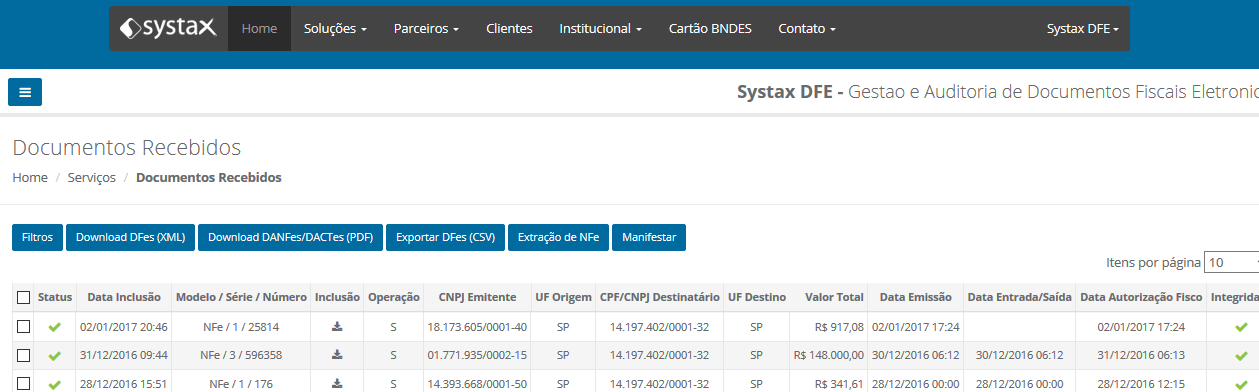
This page can be found on Service menu > Received Documents. In here, you can find the charts with documents received by Systax DFE. In this space it’s possible to check out the details of each fiscal document (NF-e, CT-e or NFC-e), perform the recipient’s manifestation download files, reproduce DANFEs and DACTEs in pdf format, among other functions.
Relevant information about this page’s columns
Each of these columns can be used as an attribute to filter information.
The first column works simply as a selection tool, allowing the selection of one or more rows. This row selection will serve to restrict documents that will be “Manifested”.
Warning: the selection has no effect to the “DFE Download” function, neither to the “Export CSV” function, which will always act over the total amount of documents filtered, regardless of paging (the exhibition of pages with a certain number of registries at a time).
Status – First column, summarizes the document status, which is shown in more details on the rows further to the right.
Inclusion – Date when the document on that row was uploaded into the system.
Model / Series / Number – The model, series and number of the document, defined by the issuing contributor. Hover over this column with the mouse cursor to see the document’s Electronic Key number. If you need to select the document in order to “copy” its key, try clicking over this columns content (Document number).

Relevant information about this page’s columns
Upload – Icon that represents the way the document was uploaded into the system. There can be many ways, such as: reading of e-mail accounts, uploaded by user, direct download from the NF-e National Website, managed by the Brazilian Federal Revenue, download by services of the recipient’s manifestation, etc. Hover the mouse cursor over the icon to see a description.
Transaction – Indicates if the transaction was of entry (E for “Entrada” in Portuguese) or exit (S for “Saída” in Portuguese).
CNPJ of the issuer – By hovering the mouse cursor over this, it also displays the issuing company’s corporate name.
Origin – The transaction’s state of origin.
Receiver – CNPJ of that fiscal document’s receiver. By hovering the mouse cursor over it, the corporate name is displayed.
Destination – The transaction’s state of destination.
Total sum – Total sum of the fiscal document.
Issue date – Issue date, may also contain the exact time, depending on the document’s layout version.
Entry/Exit – Date or date and time of entry or exit, if stated on the XML.
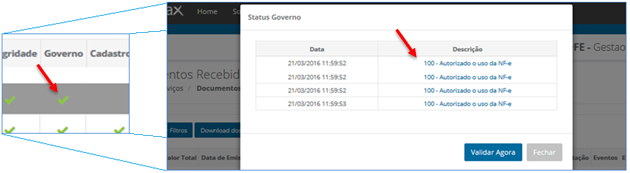
Government – Results of the document’s status alongside the government. The system performs a gathering of checks, following the evolution of the document’s status for up to 30 days after it’s issued, being so that in the first 48 hours, this verification will happen hourly. If the indicator points to a problem or you with to know when the last check was done, click the icon to obtain more details and/or update the document’s status manually.
RFB Registration – Checking indicator of the supplier’s CNPJ registration status in front of the Brazilian Federal Revenue. Clicking it will allow you to access the consultation receipt, which is stored in the system for the same period applied to the keeping of the fiscal document.
UF Registration – Checking indicator of the supplier’s CNPJ and State Registration in front of SEFAZ. Clicking it will allow you to access the consultation receipt, which is stored in the system for the same period applied to the keeping of the fiscal document. For some states, the result is a XML file, while for others it’s applies the consultation to the Sintegra environment. If the UF Registration status is “Status 111 – Query with an occurrence”, it means that there is a registry found. It doesn’t mean there was a problem, only that it responded to the search.
Fiscal – Results of applicating the validation process created by Systax to identify issues of tax nature in the taxation of all items of the NF-e. This validation can be “standard” or “advanced”, depending on the contract. The advanced model utilizes fiscal rules generated specifically to the user company, adapting the taxation to the products and scenarios of specific transactions. Without this specification, the standard version can result in some results with imprecisions.
Manifestation – This column indicates the fiscal document’s status in regard to the recipient’s manifestation.
Events – Indicates the occurrence of events linked to the fiscal documents. IF there’s na event displayed, click it to access more details.
ERP – Indicates the integration with the client’s ERP, automizing entry procedures of fiscal documents.
EFD – Indicates the relevant status to the EFD cross referencing for a specific document.
EFD Contributions – Indicates the relevant status to the EFD Contributions cross referencing for a specific document.
Bookkeeping – Indicator appliable to the advanced version of the system, with results from cross referencing data of electronic fiscal documents with bookkeeping files, such as EFD or EFD Contributions, inserted by upload in the system.
Control – Indicates the administrative control over the receiving of items from that document. It shows the status indicated by the “Ordinance” transaction, and can receive updates directly from this page, by simply clicking the content of this cell.
Some examples of possible “status” for control:
-
Waiting;
-
Received by Ordinance; Merchandise received;
-
Not received;
-
Total return;
-
Partial return;
-
Divergence detected after receiving;
-
No physical circulation.
Observation Control – On transactions for the change of “Control” (see previous item), the client can always store additional information in a text space, and it will be that observation shown in this column.
PDF – Activate this icon so the system generates a DANFE or DACTE (for NF-e and CT-e, respectively) from the stored XML.
Warning: There is no recovery of the original DANFE or DACTE generated by the document’s issuer, but rather the generation of a new auxiliary document. The main objective of this function is to guarantee that the client is seeing a reliable auxiliary document (DANFE or DACTE), generated from the main document (the signed XML), avoiding possible harmful consequences originated from mistakes or frauds (DANFE diverging from the NF-e, for example).
DFE – Hyperlink for opening the original document – the XML that was digitally signed.
Files – This hyperlink makes it easier to download individual rows of the search, since the Download button acts over all the filtered results.
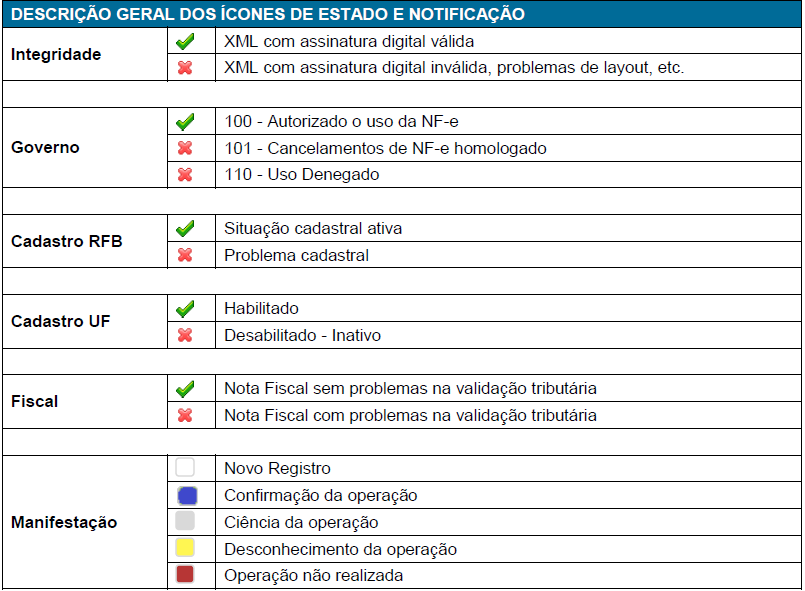
Validation icons guide
With the exception of the Integrity column, you can click on the remaining icons and the system wull show you which is the review and/or status of this indicator.
Issued Documents
This page can be found on the Services menu > Issued Documents.
It checks the documents that were issued by your CNPJ and then routed for storage and validation on Systax DFE.
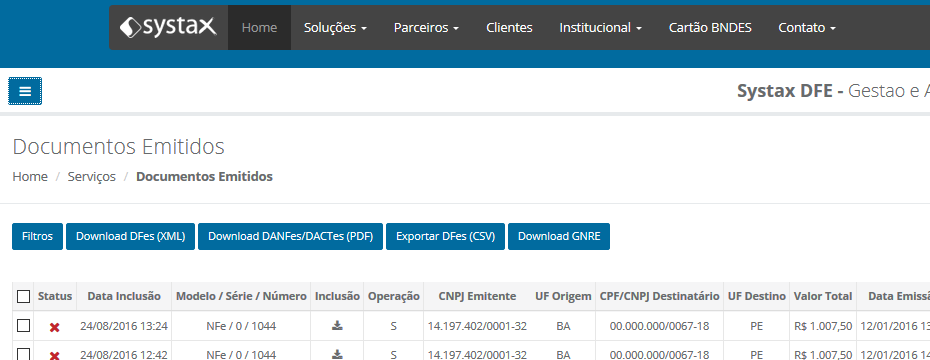
In this page, the columns are similar to the ones in the “Received Documents” query, the difference being in the absence of the “Manifestation” function, once that such resource is not necessary in the context of issued documents. It’s important to point out that, in the standard version of this tool, the inclusion of the exit NF-e is not automatic, so we have only 3 methods to insert those documents on Systax DFE.
-
Upload: Manual insertion of the file, by accessing the option File Management >> Upload DFe.
-
E-mail: It’s possible to register an e-mail account for receiving your fiscal documents, both entry and exit ones. In this case, our system does the reading and automatically inserts your documents on the tool.
-
Web Service: Direct integration in your server with low effort by the IT department.
Generating the GNRE slip
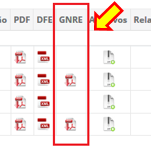
The tool allows for the generation of GNRE slips for interstate transactions with the final consumer, the requirement for that function being that the NFe contains the tags related to this specific collection filled up, and their values must be higher than 0 (zero). Whenever those requirements are fulfilled, in the GNRE column, the system will display an icon for generating the document, which won’t happen if the requirements aren’t met.
The system allows for the Generation of the slips in two situations, individually or in bulk, to attend two types of collecting:
A – Constitutional Ammendment nº 87/15 for non-contributing final consumers.
B – DIFAL (“Diferencial de Alíquota” in Portuguese – the difference between the tax percentage of the interstate transaction and the tax percentage of the internal transaction of the destination state) for the contributing final consumer.
INDIVIDUAL> On the issued documents page, navigate to the GNRE column and select the icon, if there is one, and a new tab contemplating the document in PDF format will be open.
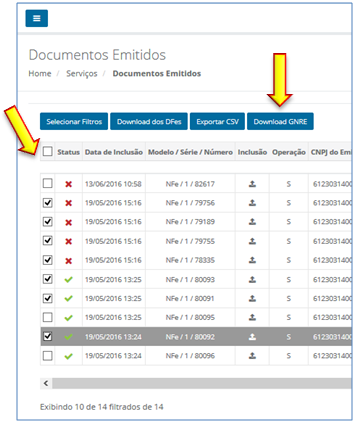
IN BULK> Use the filters to show all the documents that are of interest to you, select two or more documents manually through the selecting column (or select all filtered documents) then click the “Download GNRE” button.
You’ll receive na e-mail with the linkto perform the download in a compressed folder (.ZIP) containing all the GNRE slips generates, as well as an error report, if there are any. Utilize o filtro listar os documentos de seu interesse, selecione manualmente dois ou mais documentos, através da coluna de seleção, ou selecione todas, e em seguida clique no botão “Download GNRE”.
It’s important to point out that the e=mail will be forwarded to the e-mail address registered to the specific user that is accessing the system.
This is a function available to the advanced version of Systax DFE. Talk to you sales consultant to upgrade your package.
Warning: To use this function, it’s necessary to allow the use of the Web Service through the GNRE Portal. Access the automation menu, then click the “Ask for Web Service usage”.
Third-party Documents
This page can be found in the Services menu > Third-party documents.
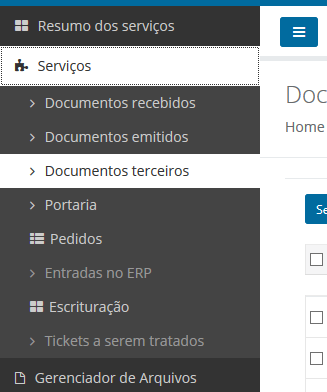
This area allows for visualizing the documents in which your CNPJ is not treated as issuer or receiver but is still related to the fiscal document; for example, a CTe document, if you are treated as the Sender and/or Borrower of services. For this and other cases with documents in such condition, they will be available at the Third-party Documents area.
Applying filters
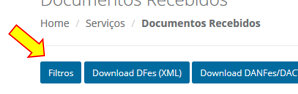
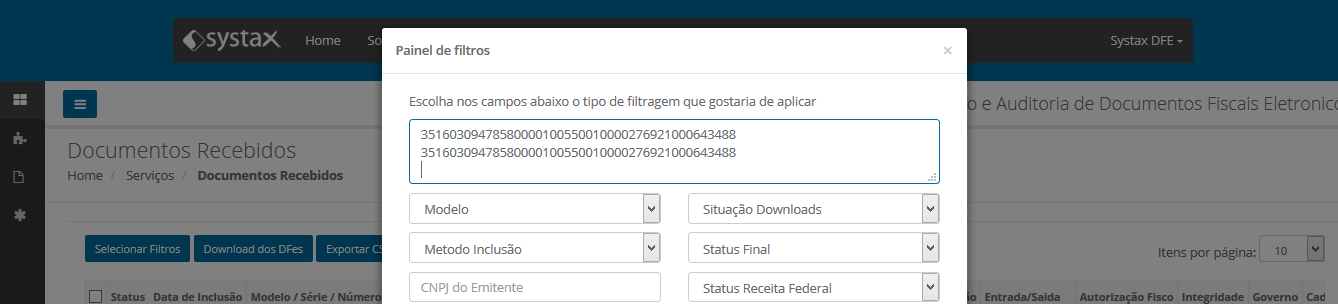
The search screen offers a group of values that can be combined freely, so that the filter requirements will be set, limiting the subgroup of documents that will be exhibited.
The “Select filter” button will also serve to indicate if any filter is being applied at the moment, with its name changing to “Applied Filters” in that case, showing the active filters by hovering the mouse cursor over it.
To remove an applied filter, simply activate the same button, then clicking “Clear” and then “Apply”.
The many fields available for filtering the information can be combined, creating more complex requirements to match. This combination works Always under the presumption of the connecting term “and”, meaning that, to be selected, the registries must fulfill to one condition AND the others.
If the objective is to filter information by access key and more than one receipt at a time, simply insert the access keys in the box on the upper side of the filter page, separating them by pressing “Enter” for each key added.
You can also copy those Keys from an Excel file. This function is limited to up to10.000 keys.
Dashboards
Dashboards
The Systax DFE tool processes the XML files, extracting the main information from their content, which are then fed to some “cubes” of information for usage in a Business Intelligence (BI) platform. Listed bellow are the Dashboards initially created in the system, readily available and constantly updated for the clients.
Warning: Clients that have the advanced version of Systax DFE will be able to contract an access with special powers, which allows them to build searches and dashboards with all the available data in the existing cubes. If you’d like more information about this resource, please consult your contact on the Systax team.
NF-e REGION
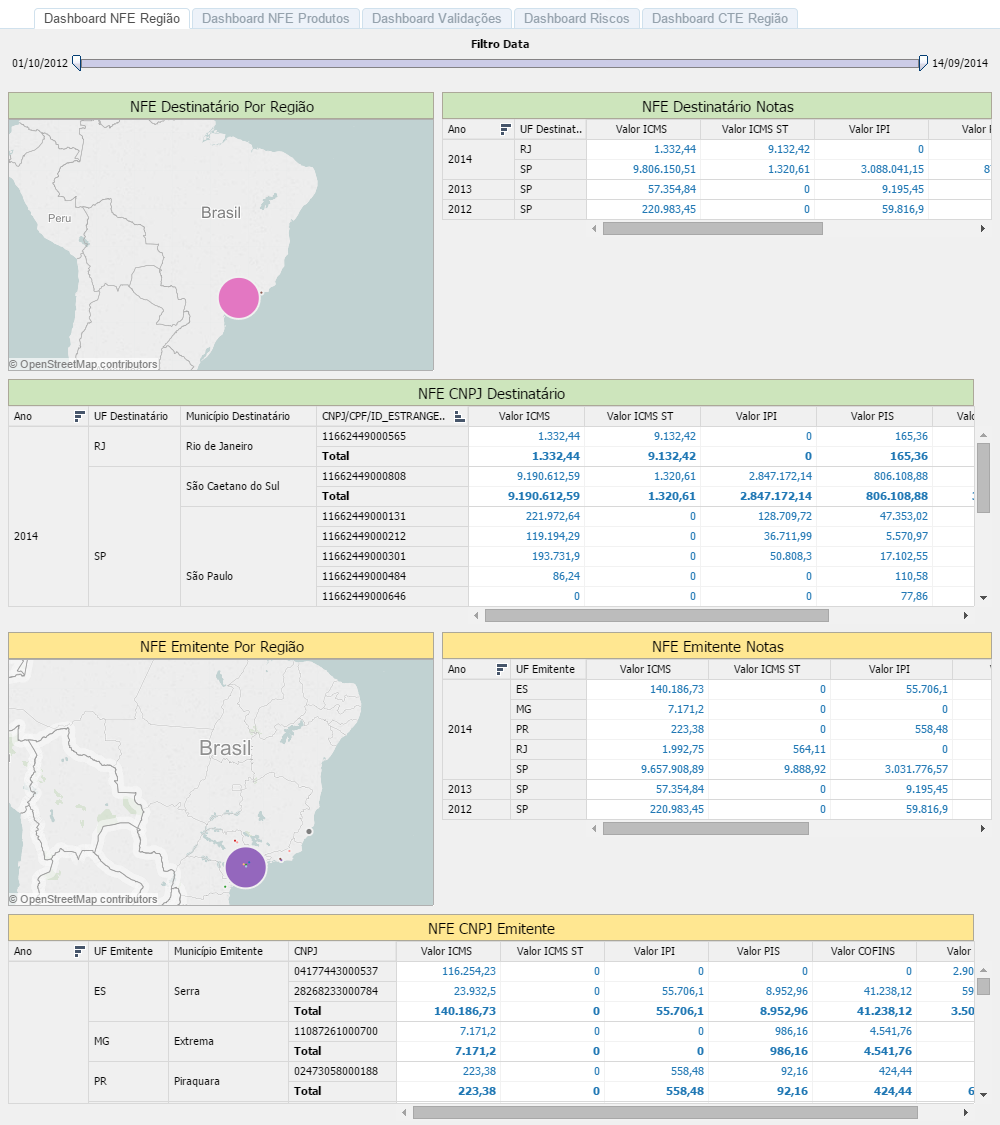
Exhibits two value distributions of NF-e receipts, both from issued and received ones, directly in two maps of Brazil, visually identifying the concentration by city/town of origin or destination. In the value boards to the side of the maps, the user can see the tax information and the total number of NF-e sorted by year and Federal Unit (state), being able to “open” the information by month and by city/town, just by clicking the “+” icon that will appear on the header line of the values board. Below the map, a distribution by CNPJ can be seen.
NF-e PRODUCTS
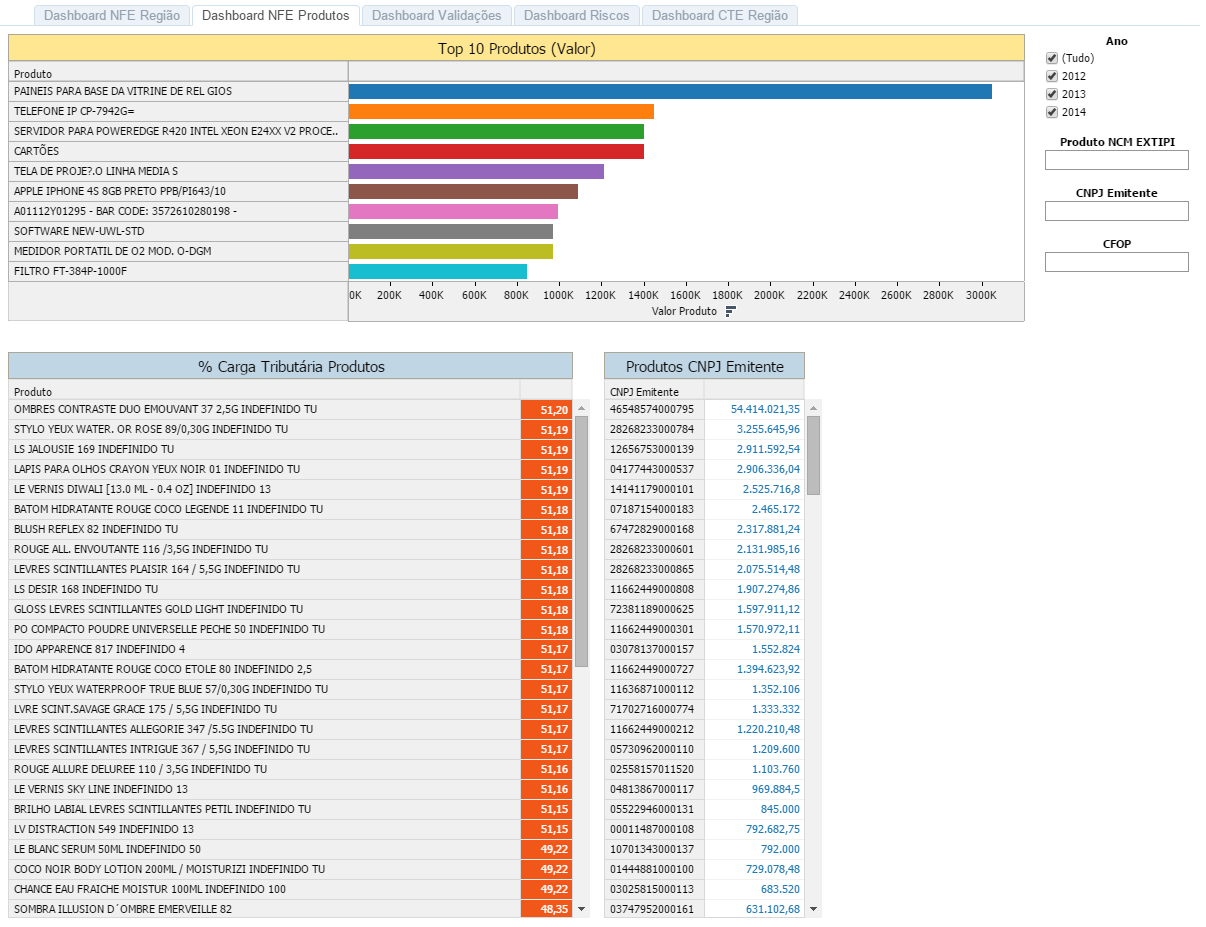
This Dashboard will presente total values by supplier/product code, allowing some quick filters (fields to the right of the chart) and a simplified total of the tax load.
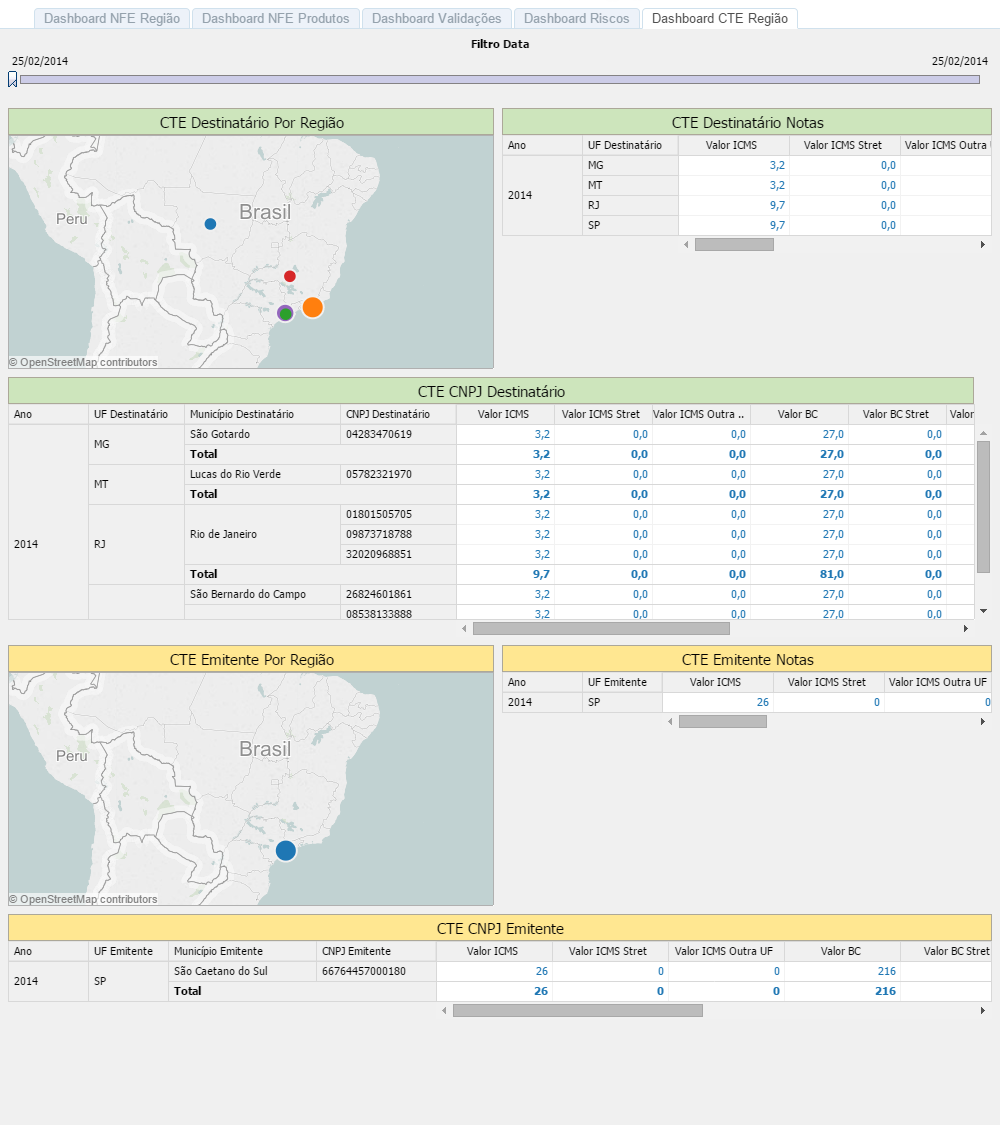
CT-e REGION
Similar to the “NF-e REGION” Dashboard, but bringing forth information of the CT-e documents, both issued and received.
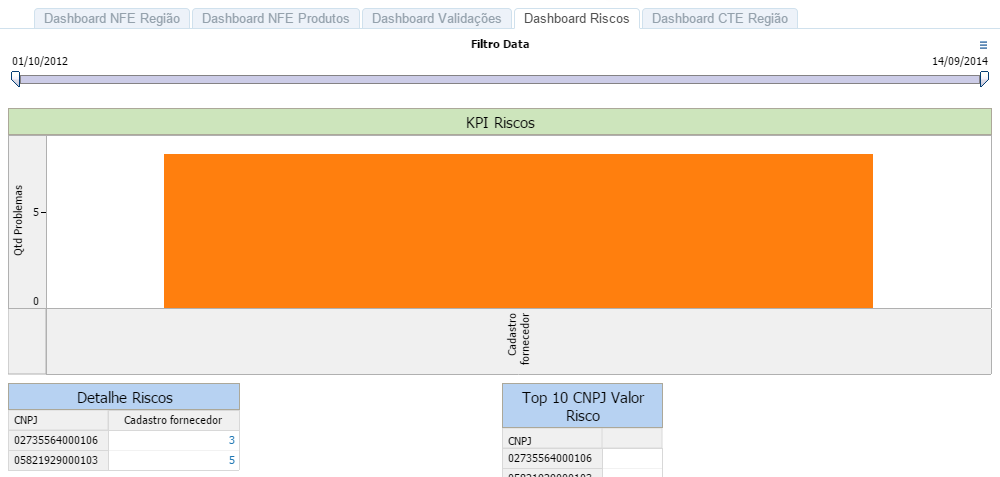
RISKS
This Dashboard has the objective of showing the distribution of occurrences related to problems detected with the validations applied by the Systax DFE tool, that are considered as “risks” for representing possible contingencies or situations potentially subject to the application of penalties for infringing fiscal norms.
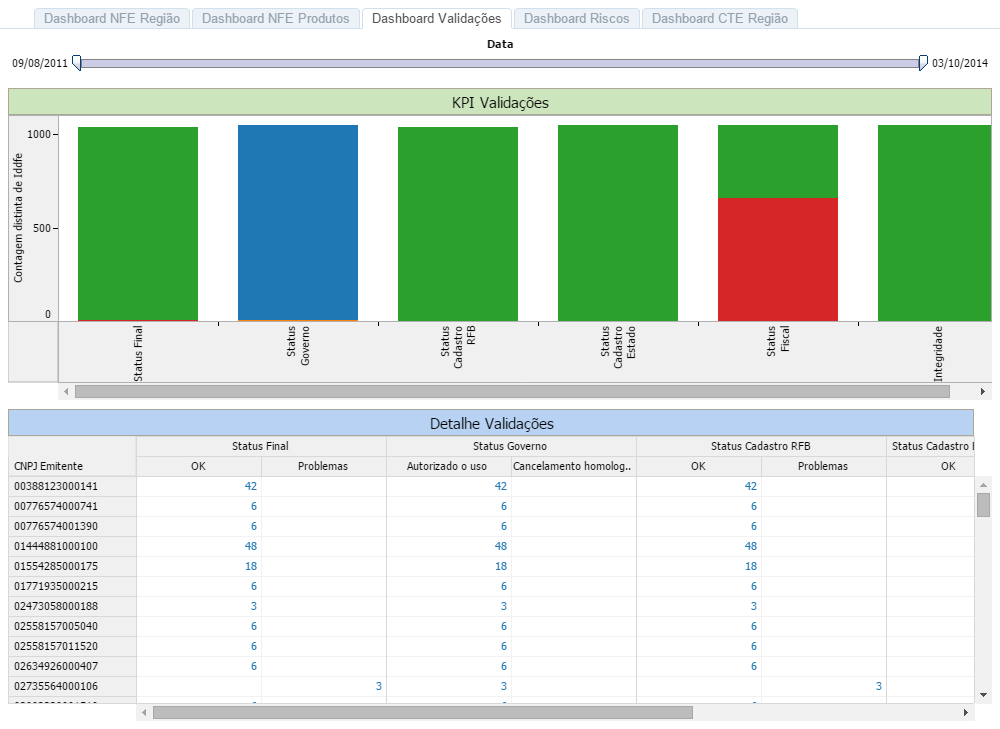
VALIDATIONS
This Dashboard has the objective of showing the distribution of occurrences related to problems detected with the validations applied by the Systax DFE tool. These situations may also subject the company to penalties for infringing fiscal norms.
File Download (XML)
File Download (XML)
This resource will gather and compress all the XML documents that are shown in the search, considering all listed paged, regardless of manual selection (tagged on the first column to the left). In other words, the download considers all the registries from the search and not the manual selection; once it does not apply any filters, the result will be for all the documents the system exhibits.
Examples:
Download in bulk:
If by clicking “Received documents”, the system registers 3.385 documents, then clicking “DFe Download”, you will receive a file with 3.385 XMLs, regardless of manual selection on the first row to the left. If any filter is applied, and the result is 29 documents, those 29 documents will be downloaded, and so on.
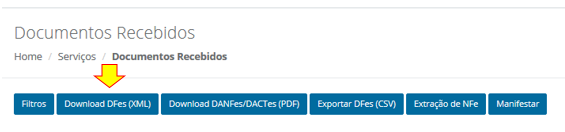
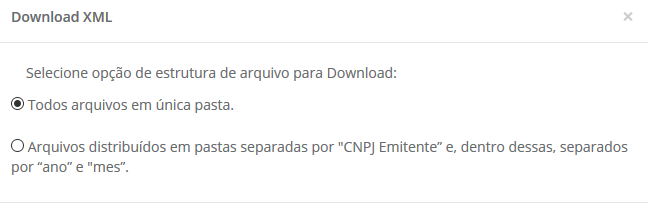
Every time the download is performed in bulk, you can choose the structure of your files, all in a single folder or many folders, organized by the issuer’s CNPJ and, inside each one, organized by year and month. Simply select the desired option as is shown in the following image.
Individual Download:
Find the receipt you want to download, go to the “Files” columns (scrolling to the right) and click the icon.

DANFE/DACTE download in bulk
DANFE/DACTE download in bulk
Works exactly as the XML download, but the achieved result will be DANFE and/or DACTE documents in PDF format.

Bookkeeping
Bookkeeping
This function allows the cross-referencing of bookkeeping information with the fiscal documents present on the tool and searches the critical reports at any moment.
This action helps verify possible adjustments when there’s still viable time for corrections. Perform this procedure before issuing your definitive bookkeeping to the tax authorities. This is a function of the advanced version of Systax DFE. Talk to your sales consultor to upgrade your package.
Cross-referencing information from EFD ICMS/IPI and EFD Contributions with your fiscal documents
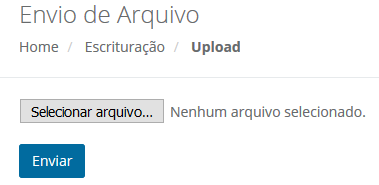
Go to the Bookkeeping option >> Upload, as shown in the image below. Click the button to choose your file, then send it. The system will process the report automatically and will be available on the tool itself, on the results page, to be downloaded. The file format of the bookkeeping file uploaded into the system must be a .TXT file, or a compressed .zip file.
Results (Cross-referencing report EFD x XML)
It’s the result of cross-referencing data from the electronic fiscal documents with the bookkeeping files (EFD ICMS/IPI and EFD Contributions) uploaded into the system, showing the following indicators:
-
XML without EFD: The receipts are in the system, but do not appear in the bookkeeping file;
-
EFD without XML: The receipts that were subjected to bookkeeping, but were not found in the system;
-
Cross-referencing: Cross-referencing of the value fields in the bookkeeping files and the values effectively present in each XML, Looking for divergencies of the header of the documents or items.
After uploading, the user will have a backup of stored bookkeeping files in the system, which the cross-referencing status can be followed upon and, after its finished, can be downloaded in a cross-referencing file, all on the same page, by clicking the icons present in the results column and the errors column, as seen below.
All uploads and their respective results will be gathered together on each upload, and can be accessed and downloaded at any point, as many times as wanted.

Observation: We also have an option for a service (Fiscal Diagnosis), where consulting jobs are performed, and by which are sent the EFD ICMS/IPI and EFD Contributions document(s), cross-referencing the data present in your EFD with our base of tax rules.
On the Fiscal Diagnosis, there’s the gathering of credit and/or debt values, assessed in your fiscal obligations.
The Fiscal Diagnosis analysis is not performed online and happens within a 30-day period. For more information, please contact us.
XML Data Extraction
XML Data Extraction
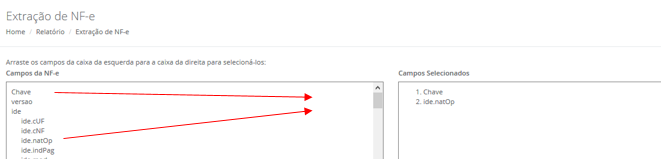
This resource is excellent for obtaining reports with detailed information of NFe documents in a CSV file. The user themselves can customize their report from any information that is present in the XML file, like CFOP, CST ICMS, NCM, etc. To use this resource, it’s important to apply a filter, determining the range of receipts to be checked, and click the “NFe Extraction” button.

Then, the system will open a new window so the user can select the NFe items they wish to observe in the report. Click the desired fields and drag them to the board on the right.

File management
File management
Uploading DFe, NFCe and CTe

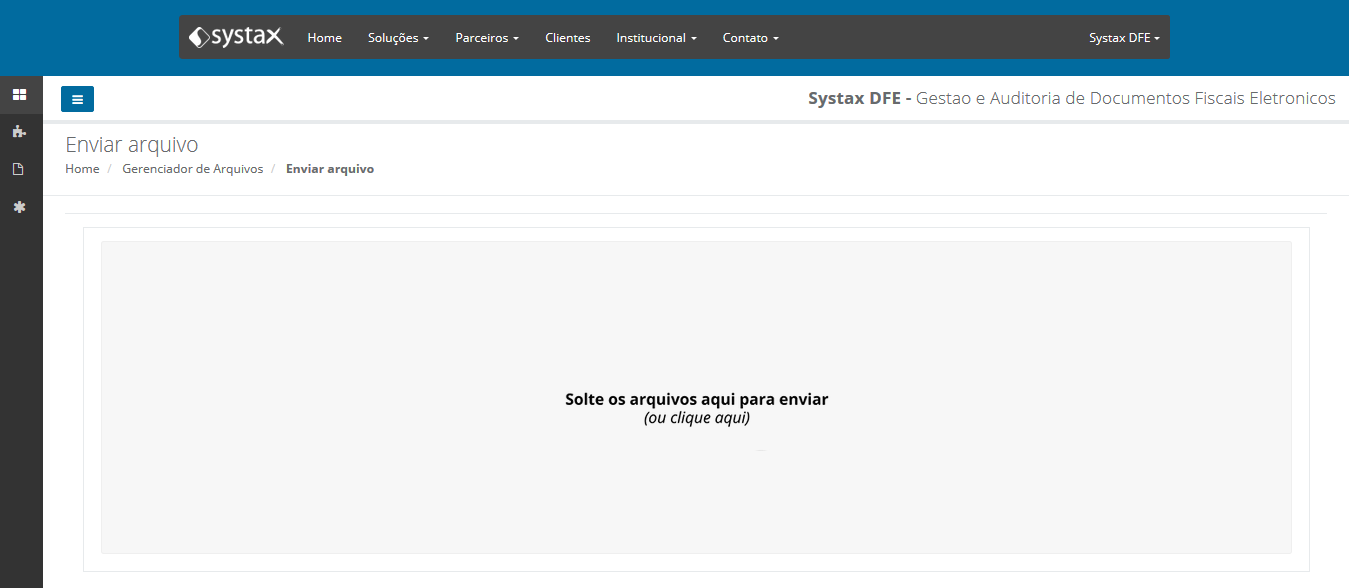
This page is for the upload of XML files of electronic fiscal receipts, allowing the user to perform the upload of XML files they already possess in their computers. The procedure can be done by dragging the file over the central area of the page, as well as clicking the “clique aqui” text (“click here” in English) in the middle of the screen to search for the file within the computer’s folders.
The system accepts not only the upload of XML files, but also compressed files in .zip or .rar. formats. The upload process accepts multiple uploads, limited to up to 1.000 (one thousand) files at a time.
Registering A1 Certificate
This page is for uploading the type A1 digital certificate, as well as information of the corresponding password. This procedure takes place in a safe environment, protecting the confidentiality of such sensible content. For more information, see the Privacy Policy and Information Security Policy documents adopted by Systax.

Step 1: Choose a file and insert a password

Step 2: Upload the file and wait for the message confirming the successful upload.

Controling your consumption
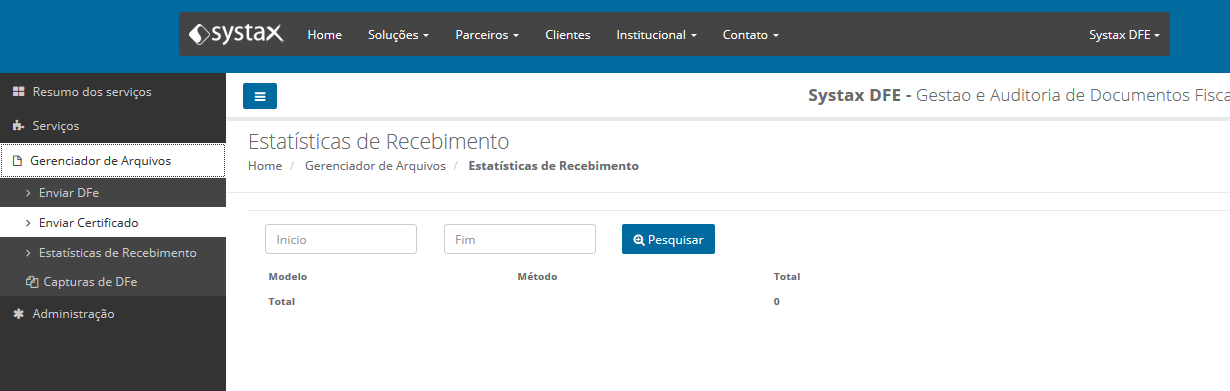
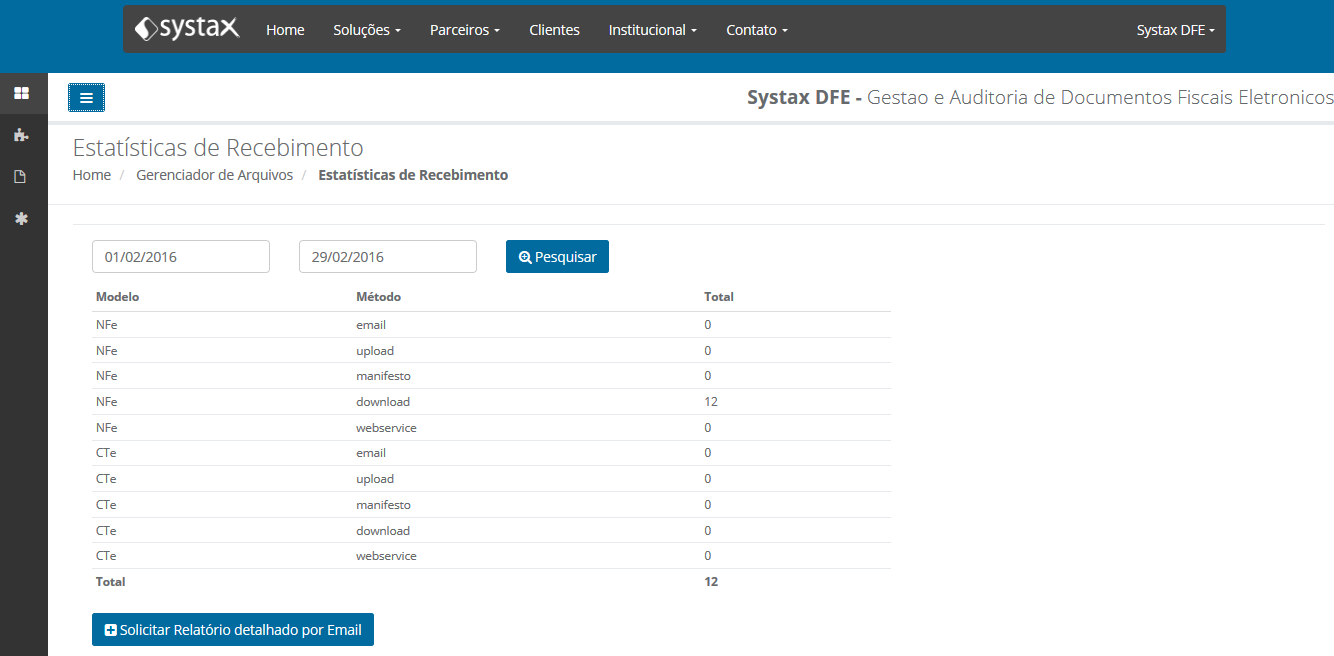
Reception statistics
This page allows the user to keep track of processing of all their documents, filtering the information by period.
It’s worth remembering that the period refers to the upload date of the fiscal document in the system, not their issuing date.
Ordinance
Ordinance
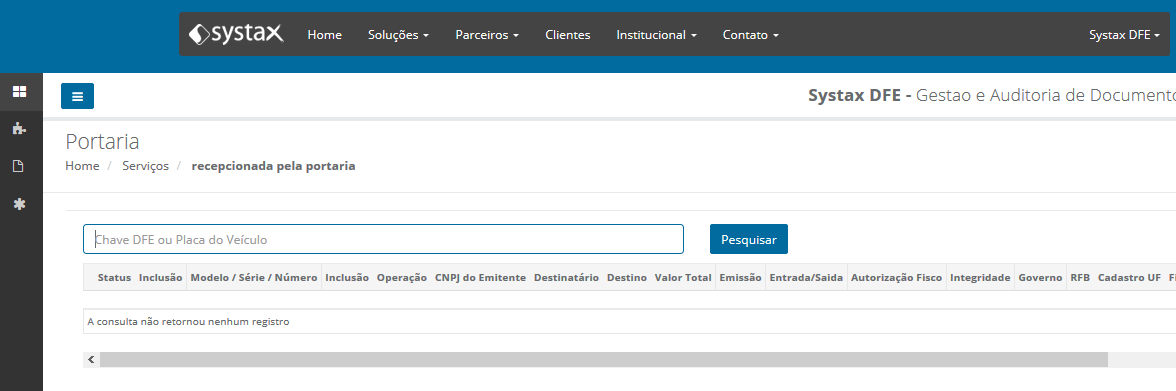
Function that allows the informing of changes in control status of fiscal document, normally the identification of load reception and merchandise entrance in the company. Besides the document’s status, the user can also inform a complementary text.
To make the use of this Ordinance easier, the search can be formulated by the electronic key of the document that the user wishes to register, or by the transporting vehicle’s license plate. The search by license plate is only efficient if the issuer of the document informs in its content the vehicle identification.
The search by license plate will bring the most recent documents (from the last 10 days).
Possible control status displayed:
-
Waiting;
-
Ordinance recepted;
-
Merchandise received;
-
Not received;
-
Total return;
-
Partial return;
-
Divergence detected after receiving;
-
No physical circulation.
First steps
First steps
For the tool to work, registering your model A1 digital certificate is needed, so that permission is granted to the system to capture your fiscal documents. It’s important to notify the DFe support after concluding this phase, so that we can activate your user’s license. If the license is not activated, and it will only be activated by digital certificate, the tool will not be fully operational.
Warnings about your A1 digital certificate
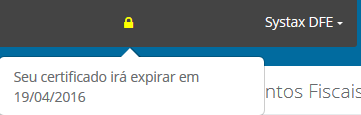
Every time that you log in, check the upper right corner of the screen, next to the name of your company, for the existence of a padlock icon. If it shows up, click it, and read the status of your certificate. If the icon is absent, it means your certificate is registered and valid.
Examples:
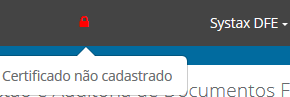
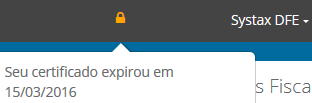
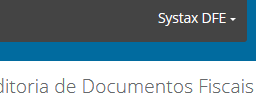
Visualizing and/ord editing your user profile
This option allows you to edit your user profile without the help of DFe support.
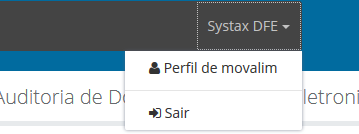
Warning: Always write down your password and keep it in a safe location. If resetting your password is needed, the user account will be unavailable for at least 24 hours. This procedure will be performed by tech support.
Issuing manifestation for your DFEs
Issuing manifestation for your DFEs
The “Manifestation” function implements the issuer’s manifestation, in other words, it activates the communication with the National NF-e Environment to forward a digitally signed message (XML) indicating confirmation or not of the transaction’s occurrence. This exchange is already mandatory to some contributors, as well as in some conditions, because the criteria might be different for each state (federal unit). Check the updated legislation to know if you are obligated to do it or not.
Even contributors that are not obligated to do it can forward their manifestation to the recipient voluntarily. This process can be performed individually or in bulk.
Individually: Find the receipt to be manifested, check it on the selection column, then click the “Manifestation” button. Observe that the “Manifestation” button will only be available after selection of the receipt(s).
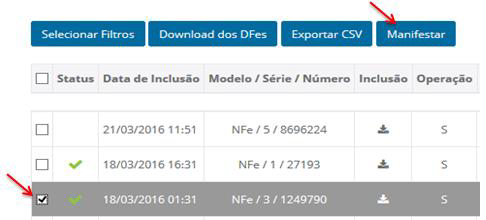
In bulk: Select two or more NFe or apply a filter that indicates a group of receipts to be manifested about, check all the resulting documents on the selection column, then click the “Manifestation” button.
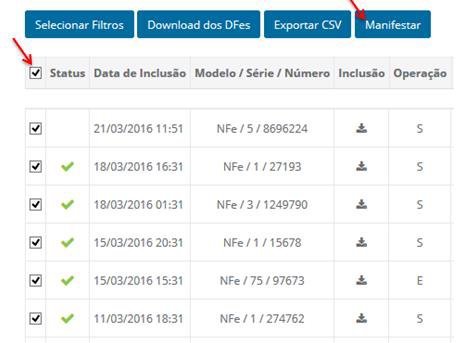
Warning: Always observe which status is to be applied to your manifestations. It’s important to remember that we have 4 status options that can be added as comments that, once saved, won’t allow you to make any changes to them, providing higher reliability and tracking ability to your activities.
NFE Report
NFE Report
This function allows the user to export the basic information from the DFEs to a CSV file (similar to an Excel file), allowing another option of document evaluation.
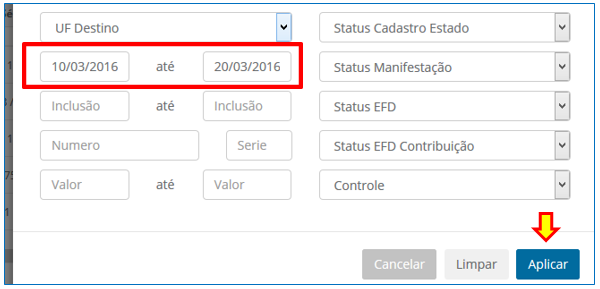
To use this function, first apply the filters for the documents you wish to export, being the requirements a period of time, searching for a specific supplier, by status, etc. Then, click the “Export CSV” button, and all the documents resulting from the applied filters will be in the generated file.
In the following example, we use the filter requirement of receipts issued between March 10th, 2016 and March 20th, 2016 (Brazilian dates are written as DD/MM/YYYY, as opposed to the American standard of MM/DD/YYYY).
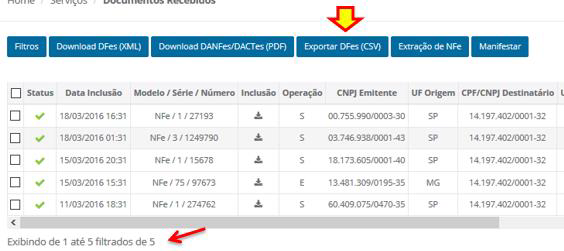
Regardless of any manual selection, the resulting file will have the information of 5 NFe documents.
Summary of services
Summary of services
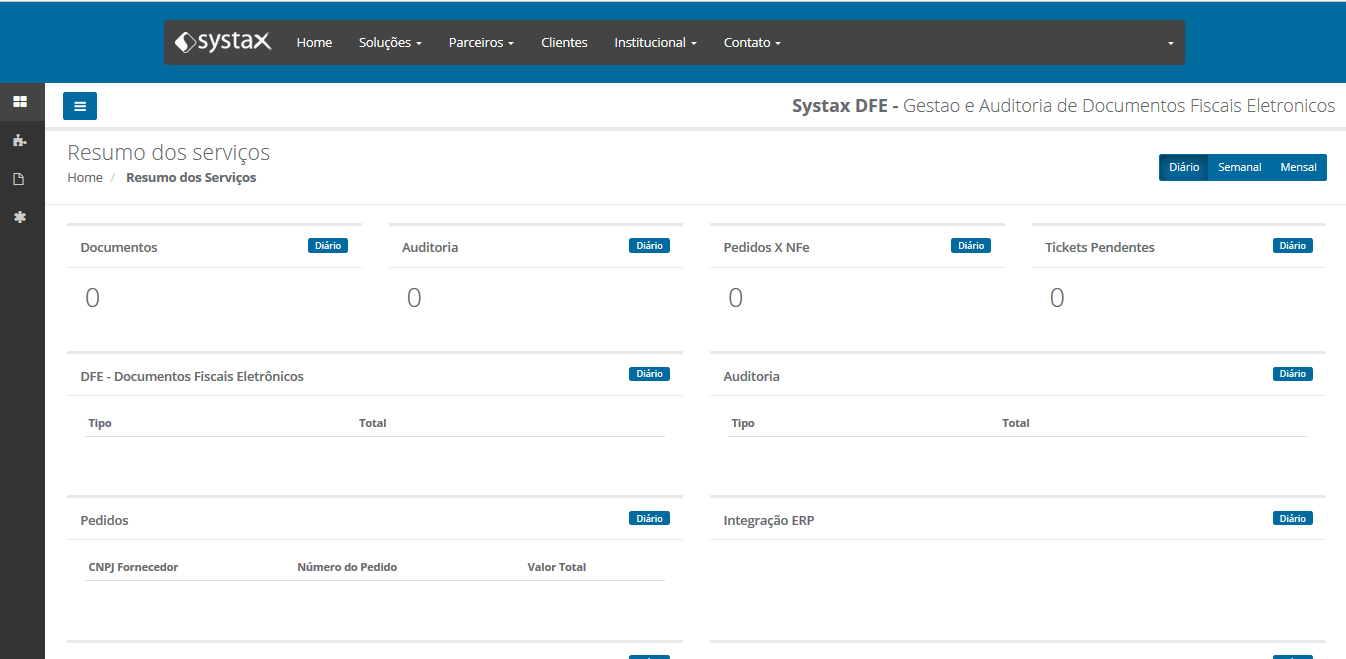
Blocks with summarized information will appear on the main screen, such as:
-
Document upload;
-
Tickets;
-
Warnings and others.
This page will be exhibited after logging in, bringing a panoramic view of the system’s usage and status.
Basic statistics are shown – the main numbers involved in the managing of electronic documents and validating functionalities available. The provided statistics can be quickly adjusted to a daily, Weekly or monthly view, by clicking the available buttons on the upper right corner of the screen. It’s important to point out that the visualization goes backwards on the daily, weekly and monthly views, by 24 hours, 7 days and 30 days from the moment of the search respectively; meaning, you may wish to check the numbers about your current week on a Tuesday and will be able to see documents from the previous weekend.

From this page, the client can at any moment choose to show or hide the side menu, simply by activating the blue icon, present on the upper left corner of the screen (to the right of the side menu), providing more screen space to view your fiscal documents.